Make it with AI.
Share it as a canvas.
Give your report, prototype, or app a stable link your team can open through your organization’s sign-in. Each canvas is a live web page or app, with named viewers and editors and a history of published versions.
Self-hosted and MIT licensed. Connect your AI agent.
See what your canvas can become.
Keep your canvases within reach.
Find the canvases you own or help edit. Open a published tool, continue a draft, or start your next canvas from HTML or uploaded files.
View full-size screenshot of Your workspace (opens in a new tab)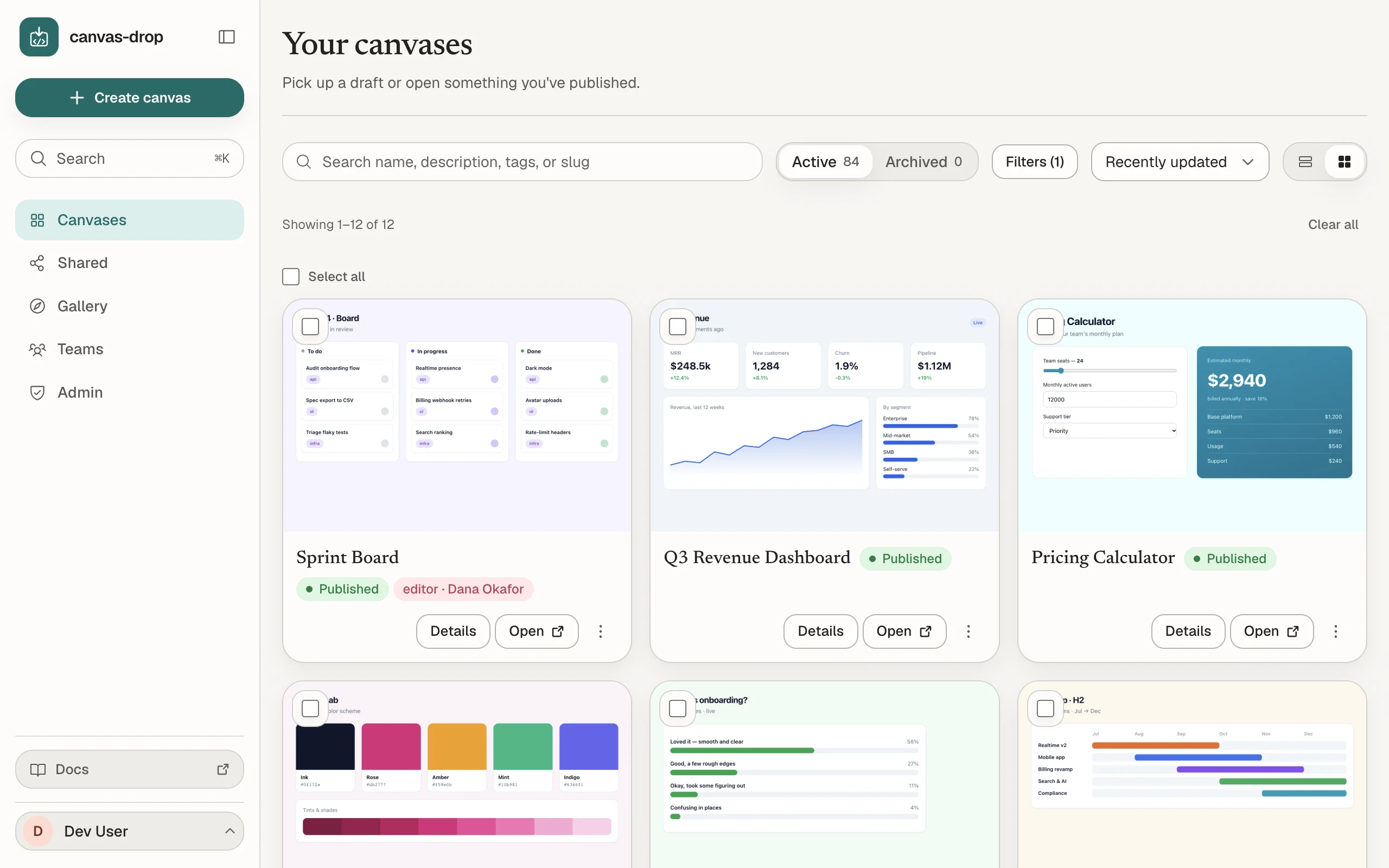
Improve the canvas. Keep its link.
Edit an autosaved draft while the published canvas stays available. Preview your changes, review what will go live, and publish when ready.
View full-size screenshot of Edit & publish (opens in a new tab)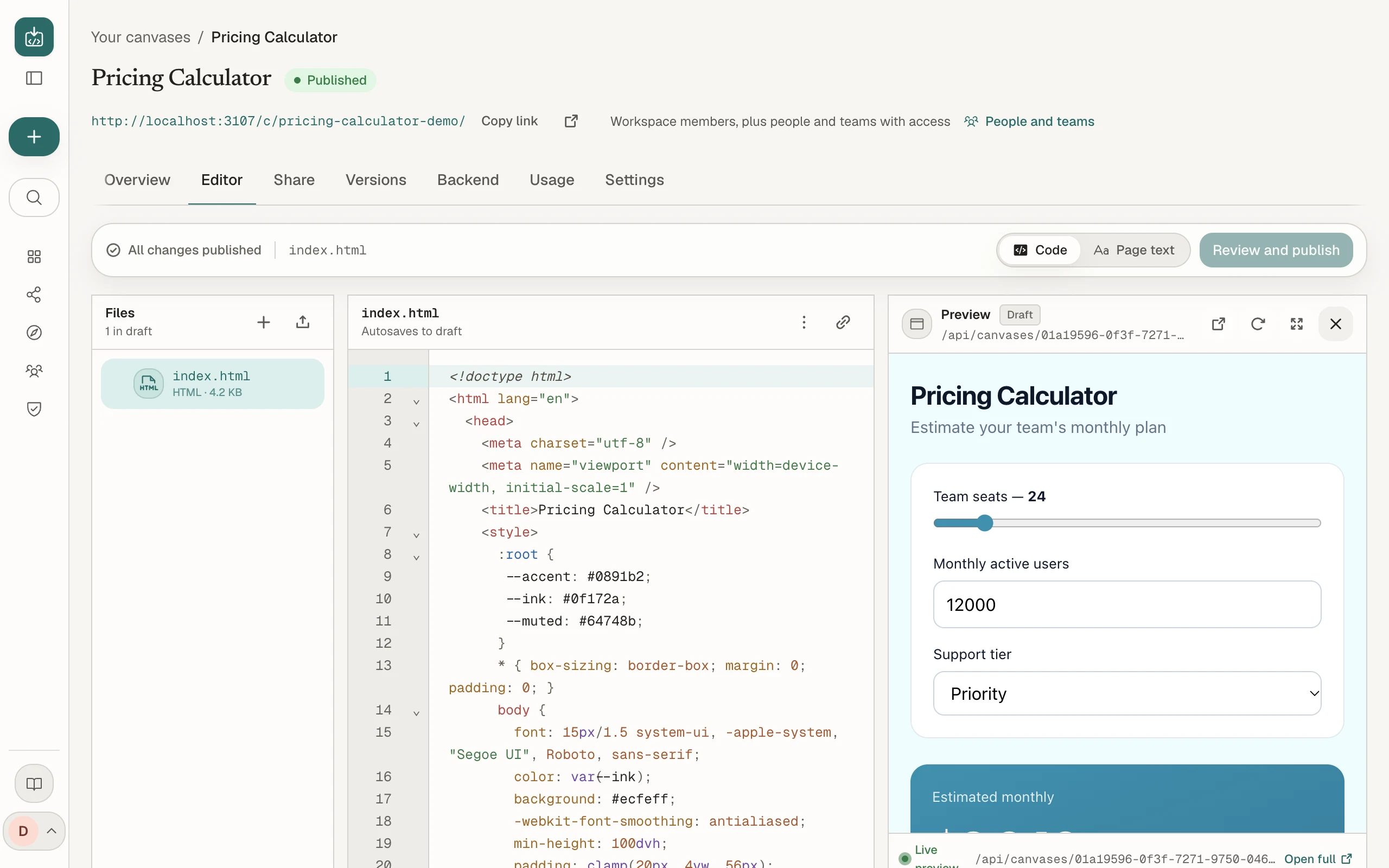
Choose who can open your canvas.
Start Restricted, then open the canvas to your organization or use a public link when your admin allows it. Set a password or expiry when a share needs one.
View full-size screenshot of Links & access (opens in a new tab)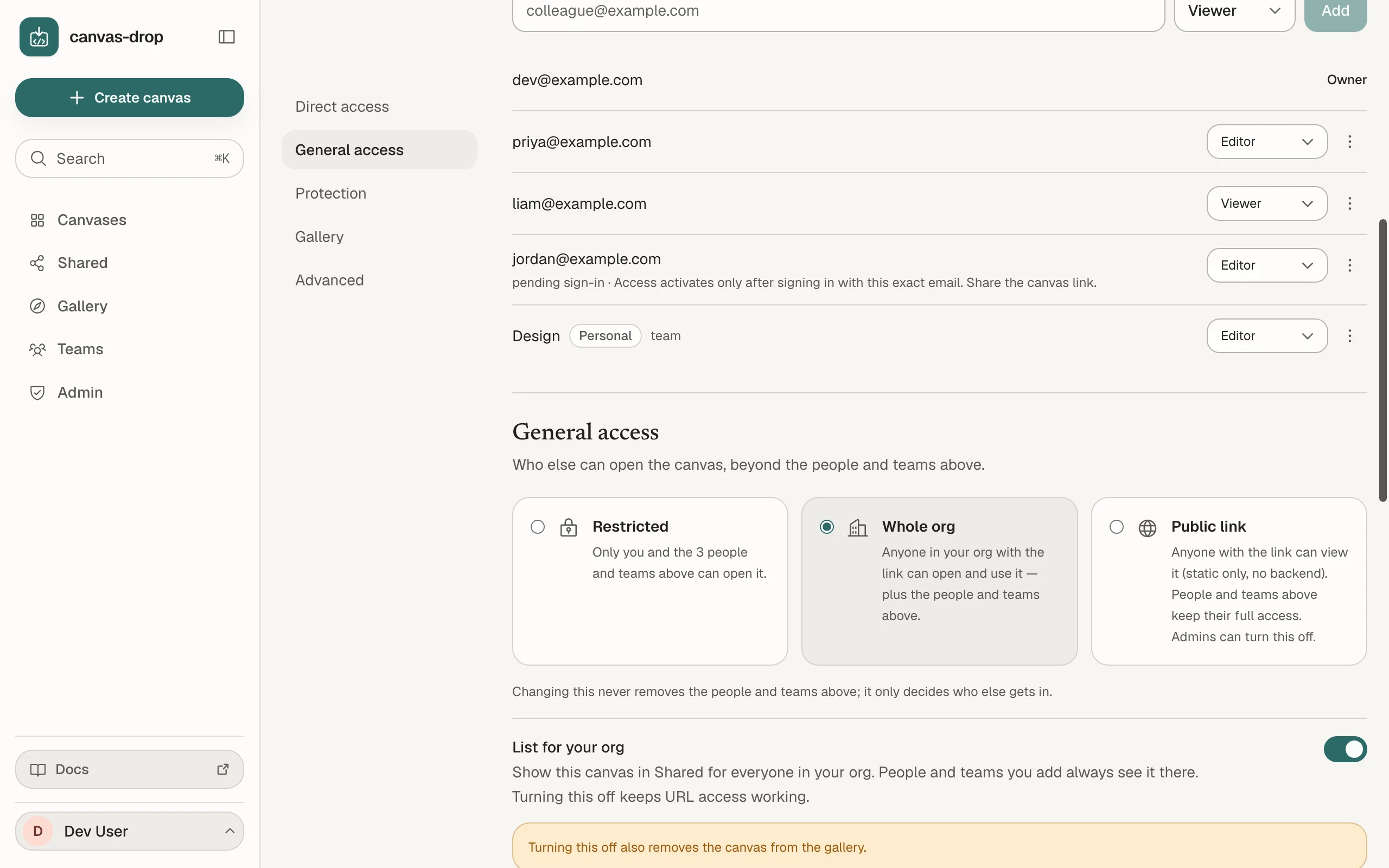
Invite colleagues to improve the canvas.
Give named people and teams viewer or editor access. Editors can change files and publish updates; the owner controls ownership and deletion.
View full-size screenshot of People & editors (opens in a new tab)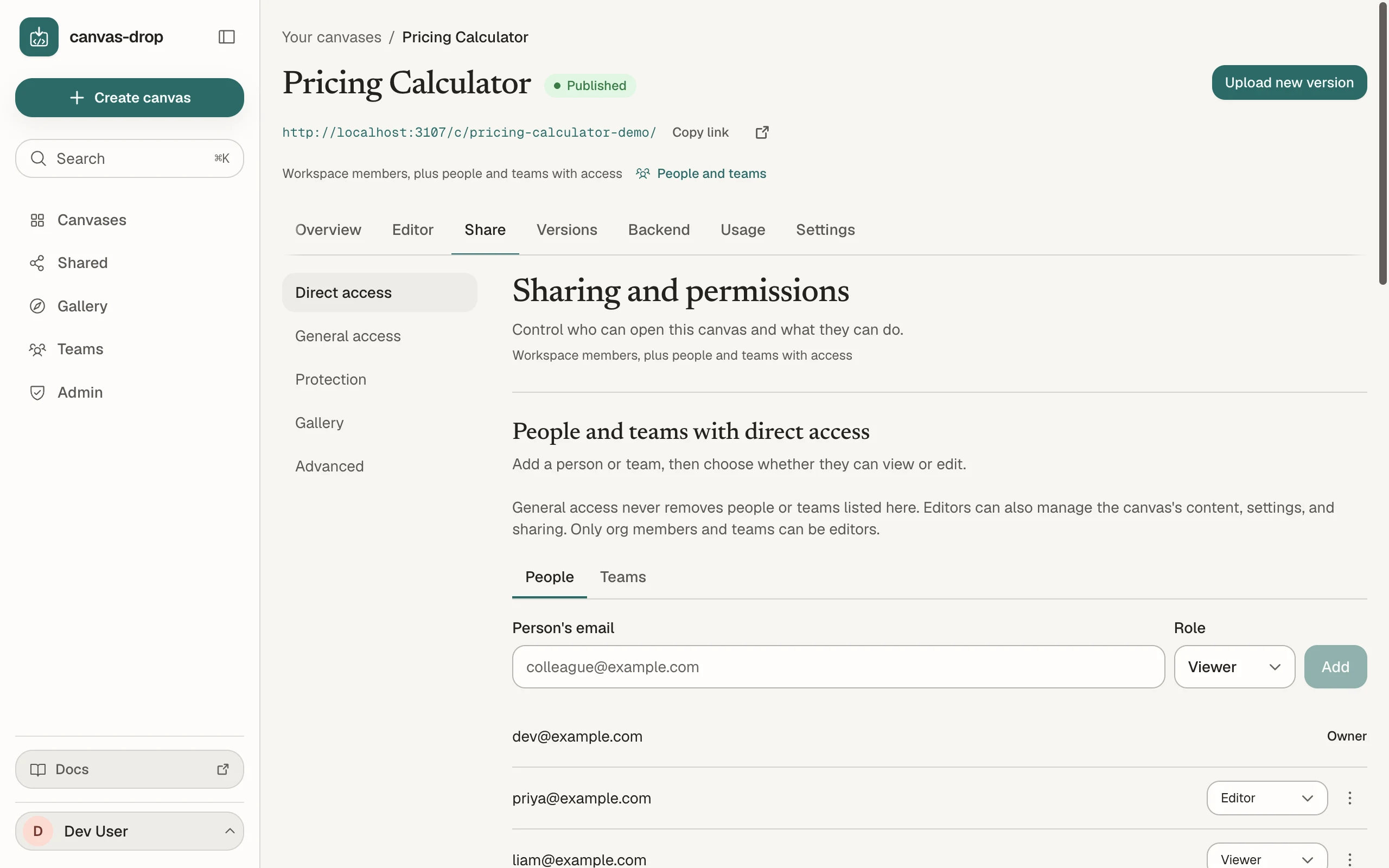
Add data and AI to your canvas.
Enable the backend features your canvas needs, from saved data to AI responses and live collaboration. Admin-granted Connections let it call approved services with credentials kept on the server.
View full-size screenshot of Data & capabilities (opens in a new tab)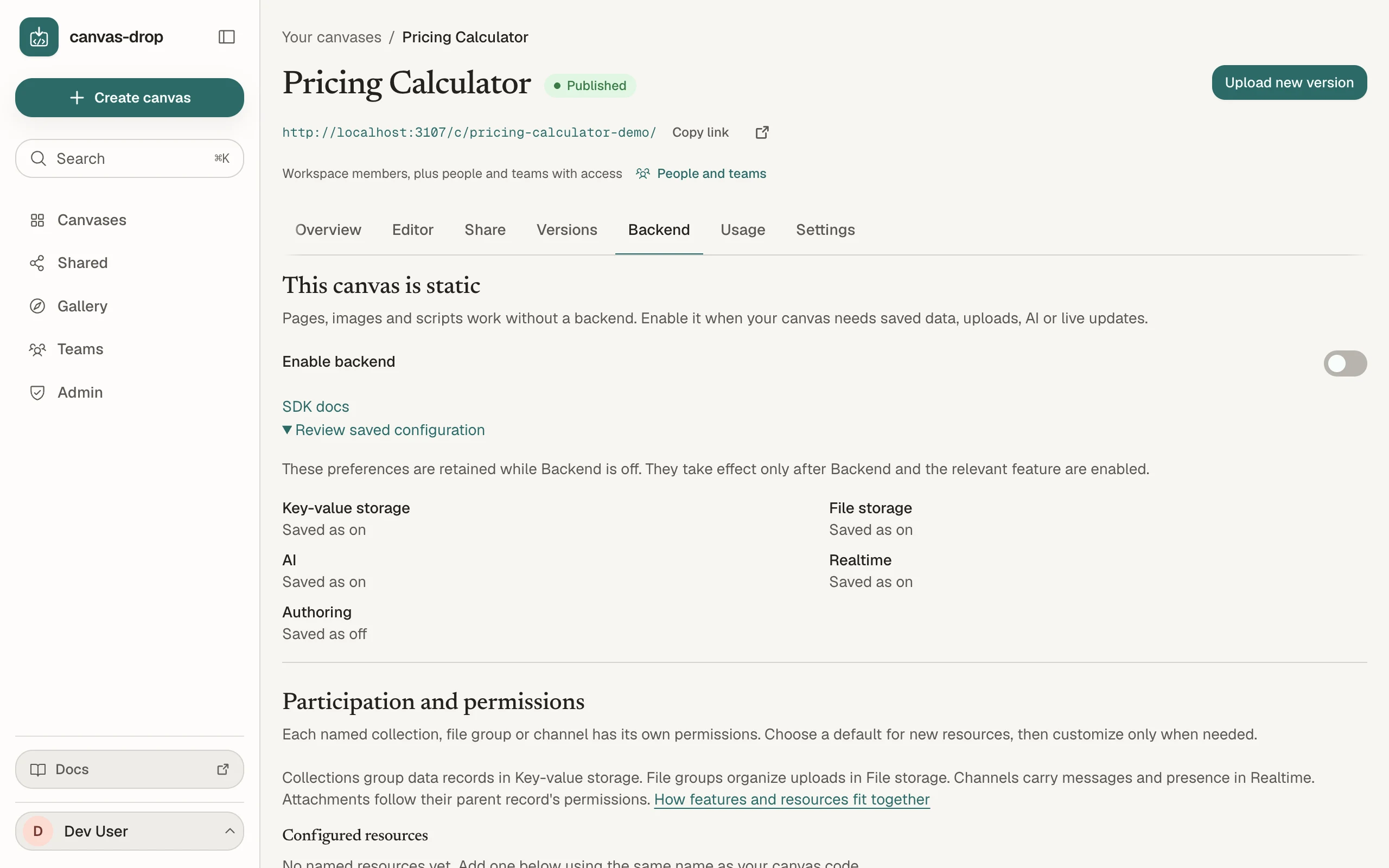
Find the canvases shared with you.
Return to canvases shared directly with you or your teams, plus those listed for your organization. Search by name or filter by owner.
View full-size screenshot of Shared with you (opens in a new tab)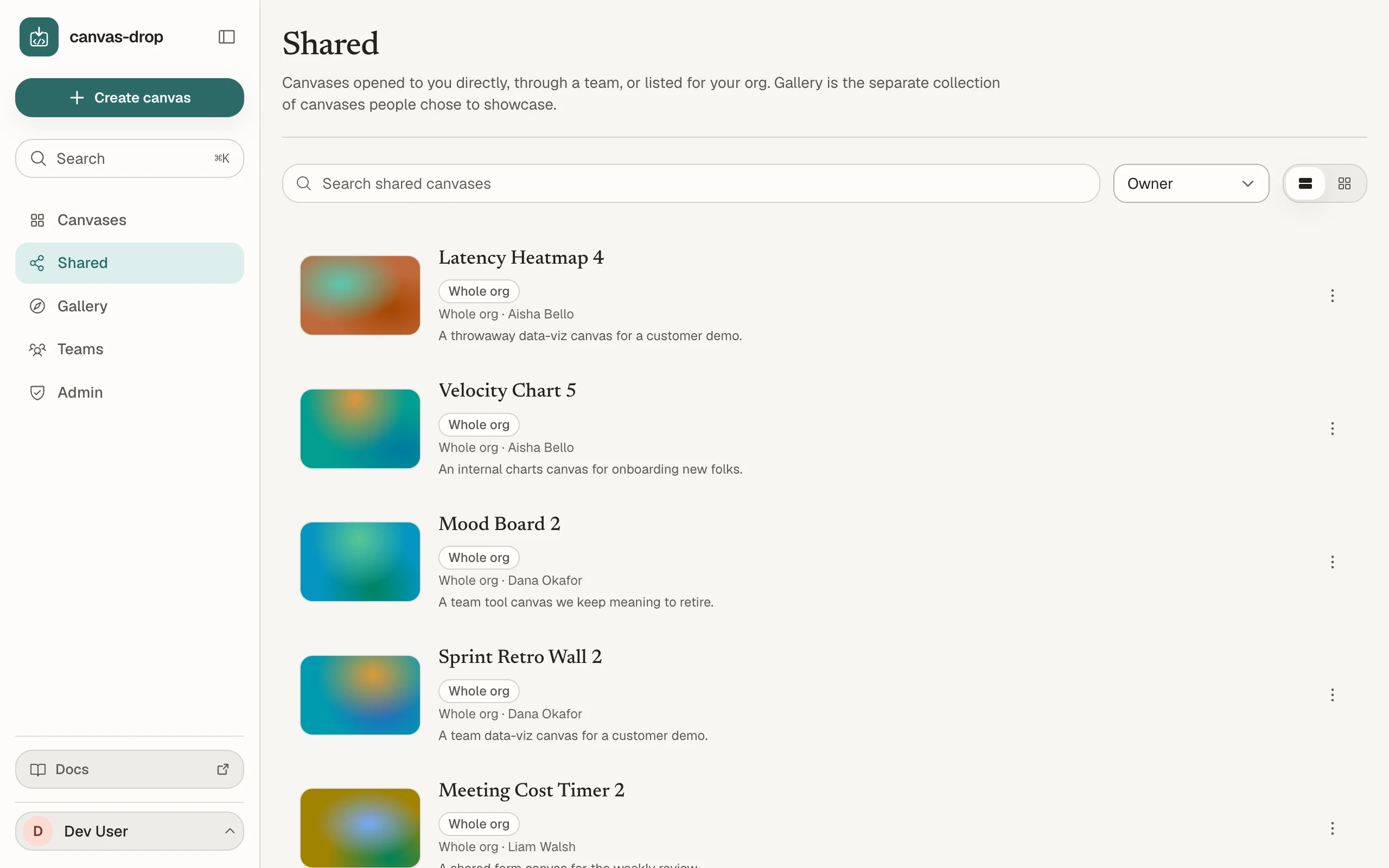
Make a useful canvas your starting point.
Explore canvases their owners chose to list in the gallery. Clone a template into your own canvas, then adapt the files and publish your version.
View full-size screenshot of Gallery & templates (opens in a new tab)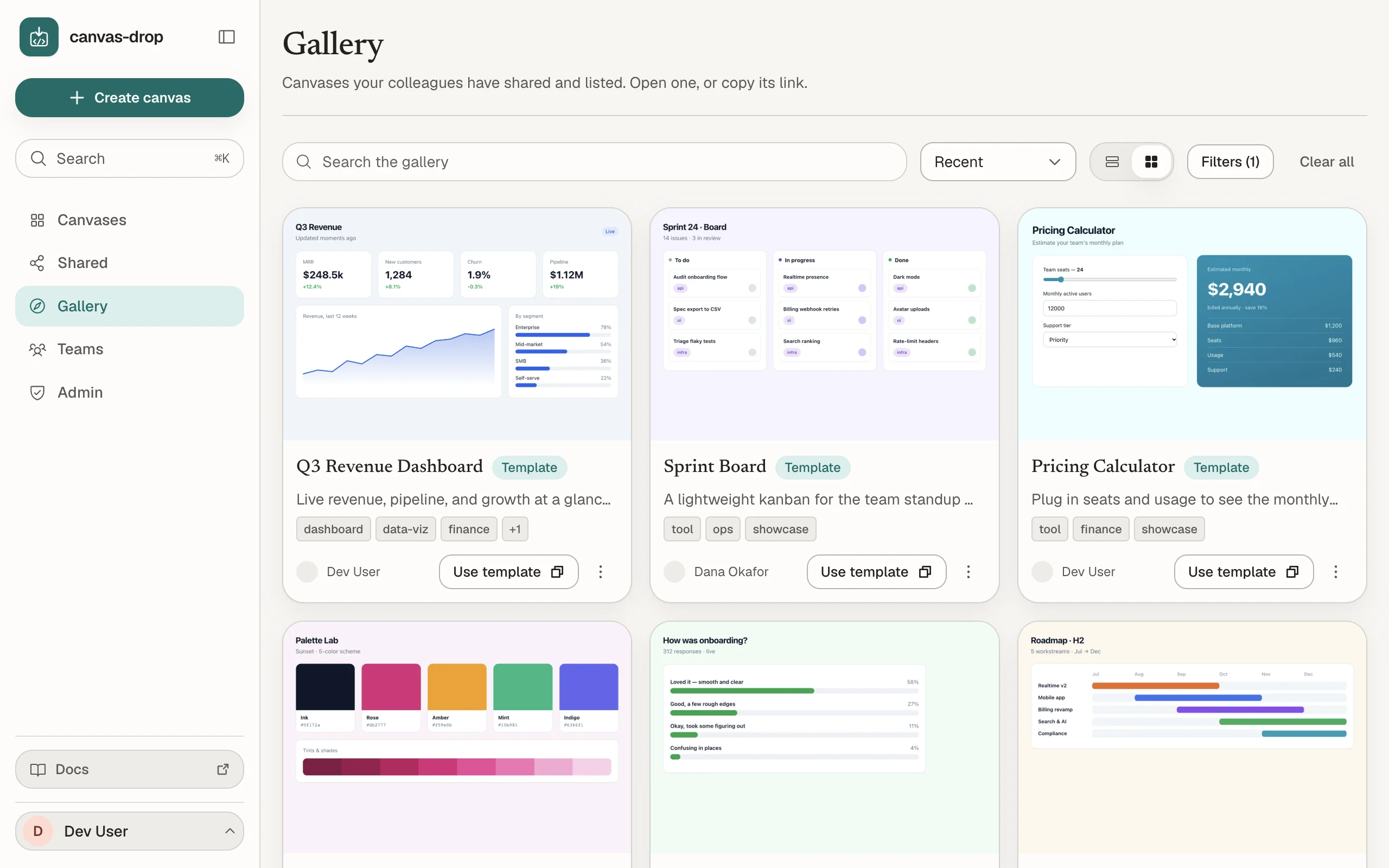
See which canvases people use.
Review views, unique viewers and recent activity for each canvas. Check backend usage as well, including storage and AI calls.
View full-size screenshot of Usage (opens in a new tab)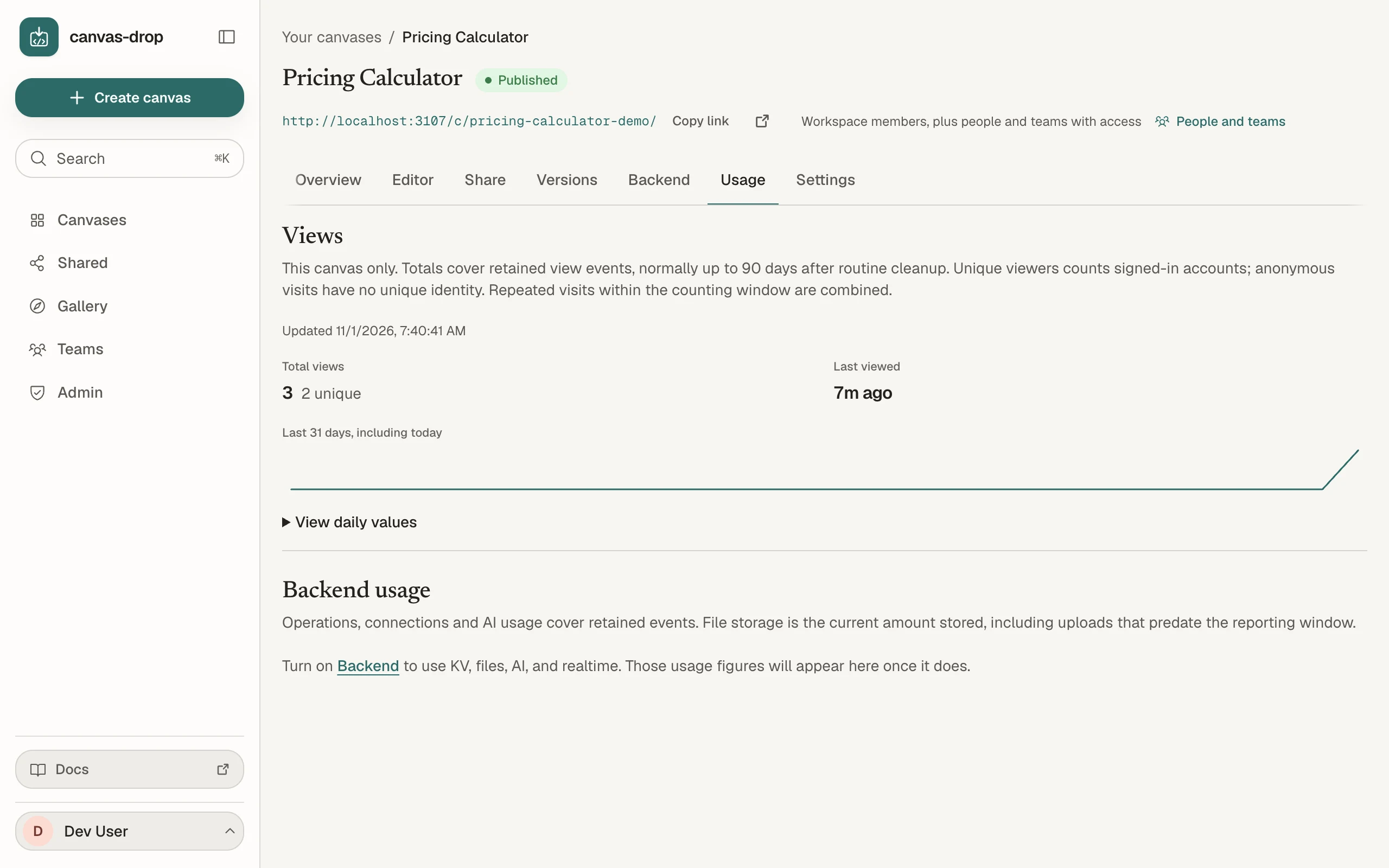
Give a team access to the canvases it needs.
Manage membership in one team, then grant that team access to individual canvases. Invite colleagues by email; they join through your organization’s sign-in.
View full-size screenshot of Teams & invites (opens in a new tab)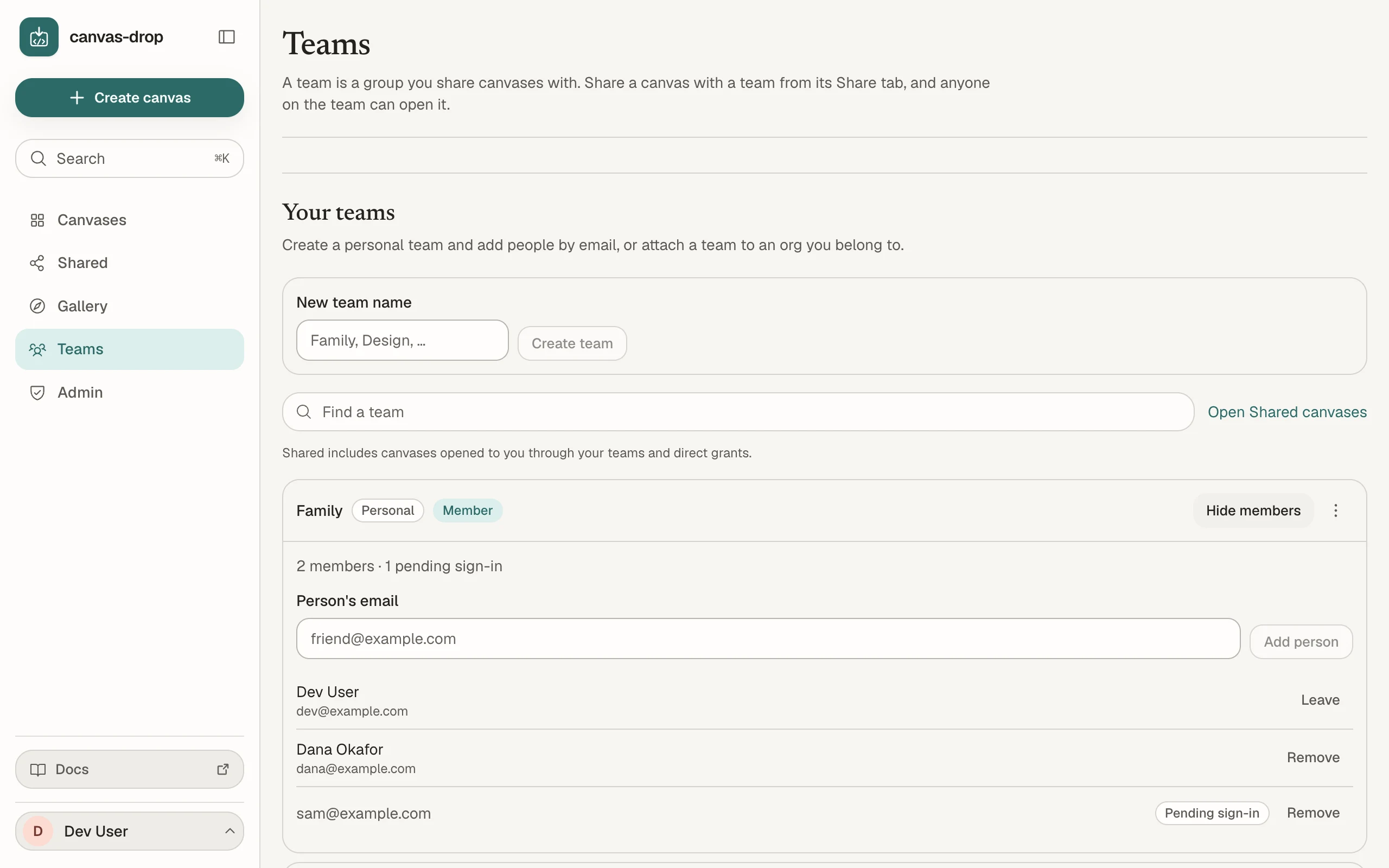
Manage canvases across your organization.
Find canvases by owner, access and status. Inspect permissions, hand over ownership, and review the exact selection before an administrative action.
View full-size screenshot of Administration (opens in a new tab)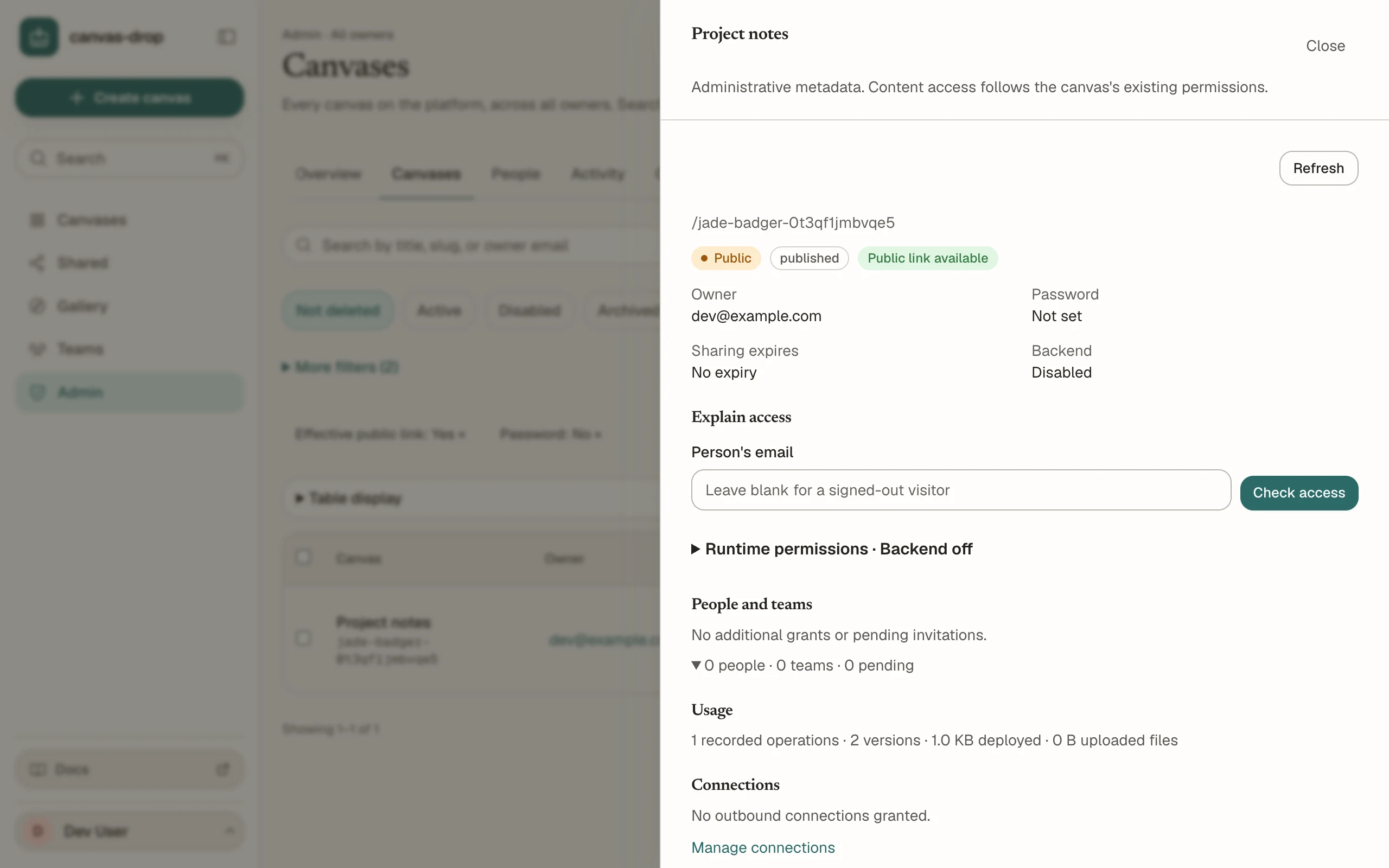
Make each canvas easy to recognize.
Use an automatic screenshot when capture is enabled, or upload a cover that stays with future versions. You can also turn previews off.
View full-size screenshot of Preview covers (opens in a new tab)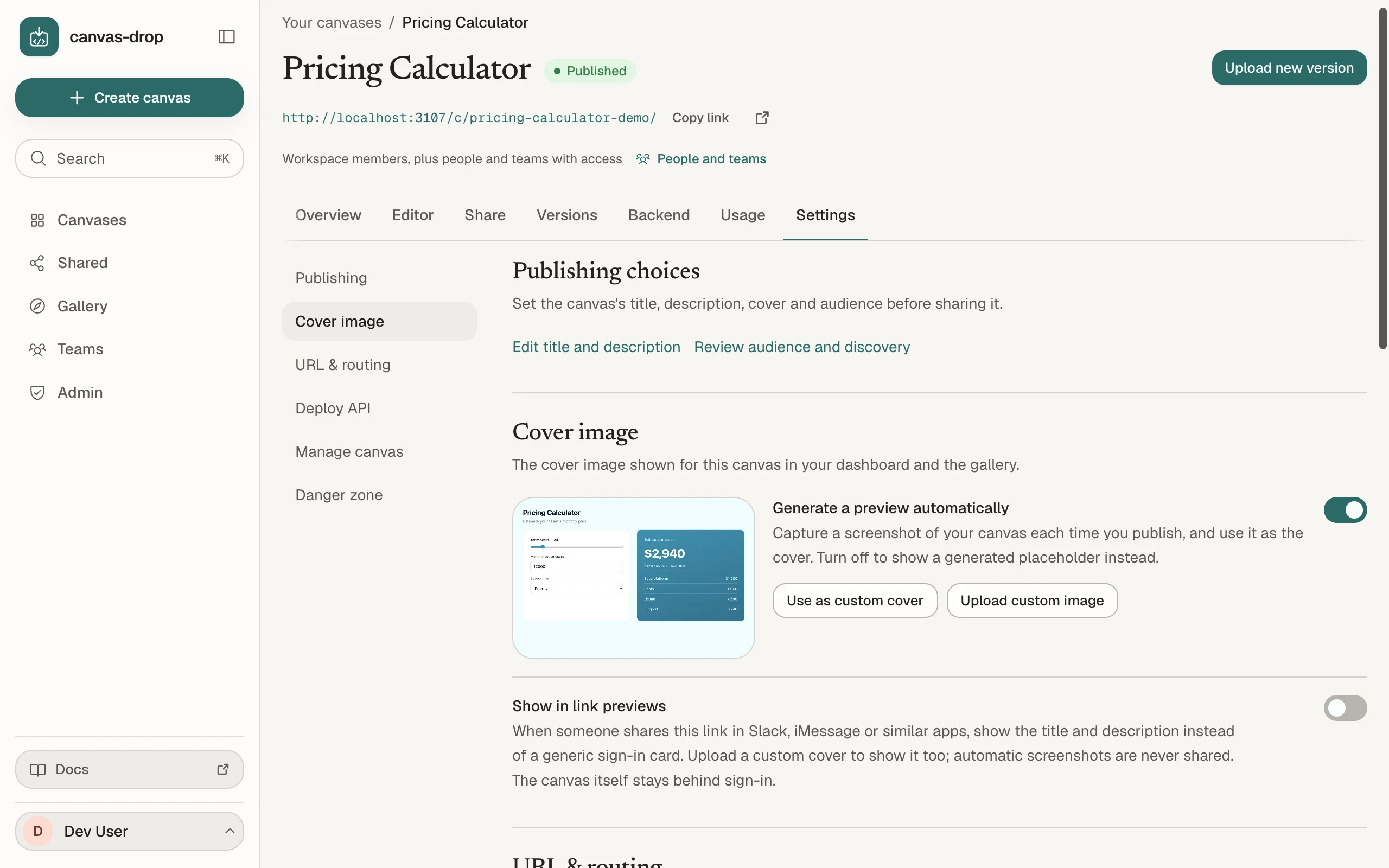
Scroll sideways to explore. Actual product screens with example content, shown in the Editorial skin.
Let your agent publish the canvas
Bring HTML or files from an AI chat, cloud workspace, or laptop. Your agent can create and update canvases over MCP with the same permissions you have in the dashboard.
Keep the link as your canvas changes
Work on a draft while colleagues use the published canvas. Preview and publish updates at the same URL, or make an earlier version current again.
Use your organization’s sign-in
Give people and teams viewer or editor access to each canvas. Open it to your whole organization, or publish a public link when your admin allows it.
Choose who can use
and edit your canvas.
Start with the people and teams who need your canvas. Add them as viewers or editors, then decide whether to open it to your whole organization or anyone with the link.
The people and teams you add keep their access when you change General access. Invite colleagues before their first visit; they use your organization’s sign-in, with no separate password to manage.
How canvas sharing worksAdd colleagues and teams as viewers or editors. Their access stays in place whichever option you choose below.
Nobody else. With no one added, that's just you.
Anyone signed in to your organization.
Anyone with the URL, subject to any password or expiry you set. Available when your admin allows it.
Give your canvas
the backend it needs.
Six built-in capabilities let your canvas save data, accept uploads, call AI and work live with other people. Use them through the browser SDK after enabling access; authoring is a separate opt-in.
Data storage
Save shared data and each viewer’s preferences. Group authored records into collections with their own permissions.
Files
Let people upload files to a canvas. Set who can read or change them; attachments follow their parent record’s access.
AI
Add AI responses using your configured models and quotas. Provider keys stay on the server.
Identity
Use each viewer’s signed-in identity, canvas role and permissions. The server resolves who they are.
Realtime
Add live messages and presence. Choose who can receive, publish and appear in each channel.
Connections
Call approved third-party APIs through admin-granted Connections. Credentials stay on the server.
Make room for canvases
across your organization.
Use the sign-in your organization already has. Keep ownership clear, review access, and hand over canvases when people change roles.
Teams & invites
Share with a team as viewers or editors. Invite colleagues by email before their first sign-in. Your admin decides whether people outside your organization can be invited.
Editors & ownership
Editors help manage, edit, and publish a canvas. Deletion, ownership transfer, and enabling guest AI remain owner-only. Owners can hand work to an editor; admins can reassign it when someone leaves.
Org sign-in (SSO)
Use your OIDC provider or identity-aware proxy, with your allowed domains and people. Canvas Drop does not manage user passwords.
Admin console
Filter by owner, access, or status and save useful views. Inspect ownership and permissions without gaining access to private canvas content.
Your brand, your look
Choose from four design skins for your dashboard, editor, and public pages. Change the whole instance from the admin console without a restart.
A clear handover
Preview a departing person's canvases and access. Reassign ownership, block the account, revoke sessions and agent tokens, and see exactly what still needs follow-up.
Investigate and act
Check why someone has access, review administrative activity, and preview bulk actions. Restore deleted work during retention or purge it afterward; backups follow their own policy.
Connections you can operate
See recent failures, latency, and affected canvases. Test a connection and rotate its credentials while their values stay on the server.
Run Canvas Drop
on your infrastructure.
The source is yours under the MIT license. Run the Docker image on a VPS or in your cloud, with your choice of database and file storage.
Restricted by default
New canvases start Restricted. Only the owner and the people or teams they add can open them until access is widened.
Usage stays in your instance
Canvas Drop does not phone home or load third-party tracking. Product usage data stays in your instance, and fonts are served locally.
Secrets stay server-side
Built-in AI and Connections keep provider credentials on the server. The backend resolves each visitor’s identity and permissions for every request.
Backend off by default
You choose which backend capabilities a canvas may use. Named collections, file groups, channels, and Connections each have their own permission controls.
Your infrastructure
Choose SQLite or Postgres and local disk or S3 for your canvas files and data. Configured AI providers and Connections use the external services you choose.
Make your next creation
a canvas people use.
Bring your HTML or files, or connect your AI agent. Publish a canvas and share its link with your team.