Create & publish
You have HTML, a folder of static files, or a build directory, and you want a live URL that people in your org can open. By the end of this page you will have published a canvas, know what a publish does, and be able to control its URL.
On this page
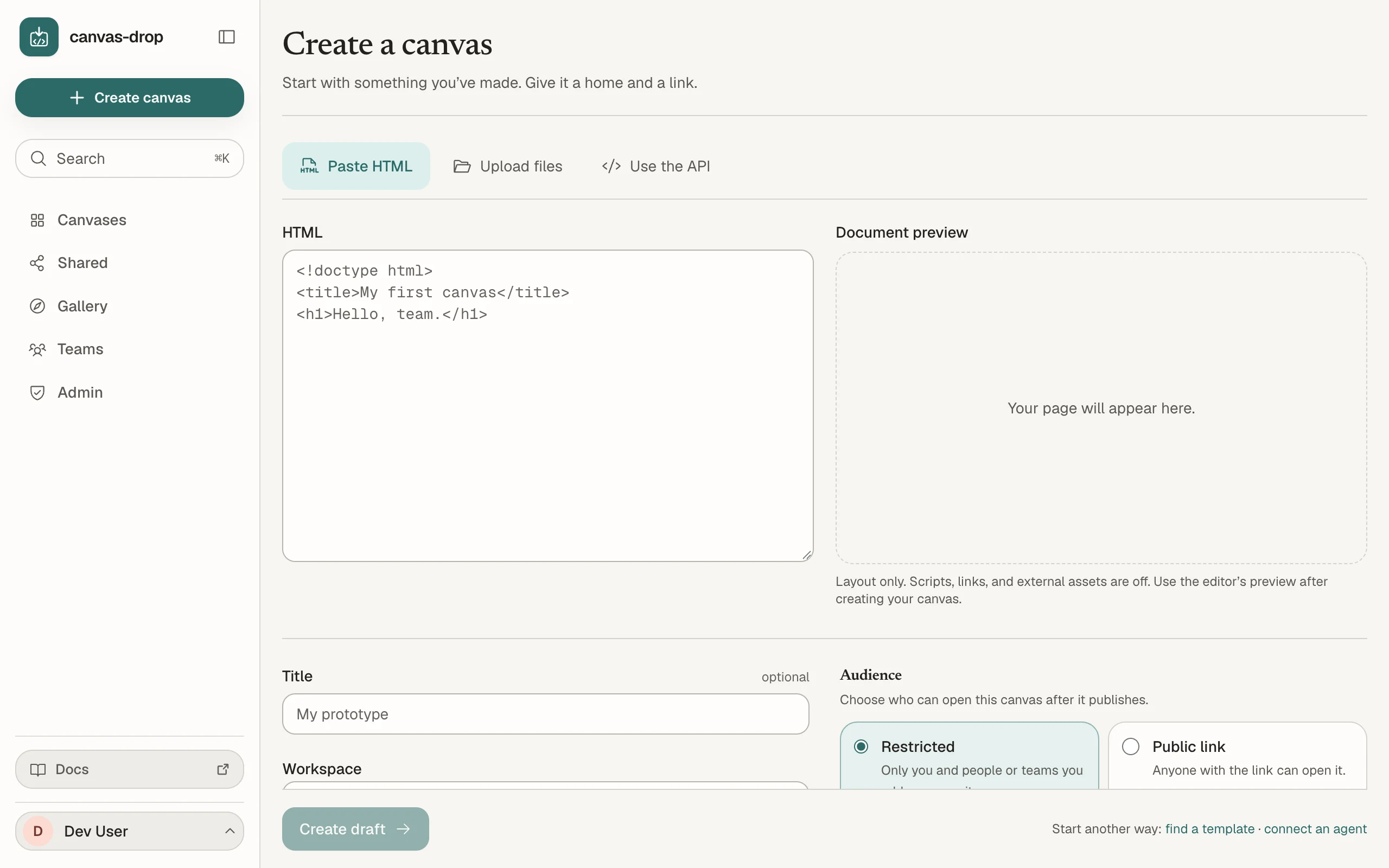
The shortest path, from a signed-in dashboard:
- Open
/newand pick Paste HTML. - Paste your markup and review the document preview. Give it a title, choose its workspace and audience, then click Create draft.
- Review Your draft is ready: check the entry page, file count, destination and intended audience. Choose Continue editing to open the editor, or Review and publish, then Publish canvas to make it live.
- Copy the link or choose Open canvas. Save the optional deploy key if you plan to publish through the API; it is shown once. The Overview tab also has the URL:
{base}/c/{slug}/inpathmode,https://{slug}.canvases.example.com/insubdomainmode.
The same from a terminal, with the canvas id and key shown when you create a canvas:
curl -fsS -X PUT "{base}/v1/canvases/{id}/deploy" \
  -H "Authorization: Bearer $CANVAS_KEY" \
  --data-binary @site.zip
# 200 {"url":"…","version":1,"fileCount":12,"totalBytes":48213,"warnings":[]}
Ways in
| Source | Where | What it does |
|---|---|---|
| Paste HTML | /new |
Stores your markup as index.html in an unpublished draft for review |
| Files or folder | /new |
Uploads to an unpublished draft with relative paths preserved |
| Upload ZIP | /new |
Prepares the archive files as an unpublished draft for review |
| Upload new version | An existing canvas’s Overview | Publishes pasted HTML, files/folders or a ZIP directly to live |
| Use the API | /new |
Mints an empty canvas plus its key; the first PUT …/deploy publishes |
| Editor | The Editor tab | Autosaves a draft; you choose Review and publish when ready |
| Deploy API / MCP | Scripts and agents | Publishes directly to live with a key or over MCP |
flowchart TD
    subgraph Sources["Ways in"]
      DnD[Files or folder]
      Zip[Upload ZIP]
      Paste[Paste HTML]
      API[Deploy API / MCP]
      Ed[Editor]
    end
    DnD --> Draft[(Draft)]
    Zip --> Draft
    Paste --> Draft
    API --> Pub{Publish}
    Ed --> Draft
    Draft --> Edit[Keep editing]
    Edit --> Draft
    Draft -->|Publish when ready| Pub
    Pub --> V[Immutable version N, content-addressed]
    V --> Live([Served at the canvas URL])
    Live -.->|Make current| Prev[Re-point to an earlier version]
    Prev -.-> Live
Every publish writes an immutable version: files are stored by content hash, and the live URL is a pointer at one version. Rolling back re-points; nothing is rewritten. The last 10 versions are kept.
Dashboard creation and the editor use a draft step. Upload new version on an existing canvas and the Deploy API publish the moment they succeed. Two words for the same event: the dashboard says publish, the API and code say deploy.
Owners and editors can do everything on this page. A viewer opens the canvas but cannot change it; only the owner can delete it. See Sharing & access.
Options at create time
After you pick a source, /new asks for:
- Title (optional, up to 200 characters). Rename later from the Overview tab.
- Slug (under Optional settings). Leave it empty for a readable random slug, or choose your own; availability is checked as you type. See Custom slug.
- Workspace, always visible. Personal means only you and the people you specifically add. Picking your org homes the canvas there so it can later open to the Whole org rung. This choice is fixed once the canvas exists: a Personal canvas cannot be opened to Whole org later. Accounts without an org can select only Personal.
- Audience (not shown for Use the API). Restricted is the default: only you and people or teams you add can open it. A workspace canvas offers Everyone in {workspace} with a List in Shared toggle (off by default) so members can find it. A Personal canvas offers Public link, when the instance and your account allow public links, with an optional Require password. Changing the Workspace resets the audience to Restricted. Creation saves an unpublished, Restricted draft. Review and publish shows the planned audience in the final confirmation: publication happens first, then the selected sharing settings are applied. If sharing fails or its response is lost, the result stays Your canvas is published, with Sharing needs verification and Check sharing. Review access there; do not republish or delete the canvas to retry sharing. The full ladder, named people, teams, and expiry live on the Share tab.
- Enable backend (under Optional settings, off by default). Turns on identity and, subject to what your instance allows, KV, files, AI, and realtime. Change it any time on the Backend tab. See Capabilities.
The Upload files source accepts files, a folder, or one ZIP. Selection stays in your browser until you click Create draft; review the file paths or archive summary first. If an upload fails after creation, the partial canvas stays unpublished. Retry draft upload retries the retained files; Open saved draft lets you inspect what arrived. Your original preparation remains available. Navigation protects unsubmitted input; after a full page reload, files must be selected again.
The published result leads with your canvas link and audience. Open the canvas or manage sharing in a new tab while the result stays available. The deploy key is optional for dashboard use: expand Save your deploy key (shown once) to copy it, or explicitly continue without saving it. It is never stored in your browser.
Pasted HTML gets a layout-only document preview, with scripts, navigation, and external assets disabled. Its document title is suggested until you edit the title yourself. Files and ZIPs show a summary; use the editor’s full preview after creation to check the layout. The preview is sandboxed, so modules and signed-in features (me(), KV, files, AI, realtime) only run at the published canvas URL.
Files or folder
Drop individual files or a whole folder, or use the file and folder pickers. Relative paths are preserved at the canvas root, so an index.html at the folder root is served at the canvas URL. On Create, select and review first, then click Create draft. Progress appears while files transfer.
Upload a ZIP
Upload a .zip (not a tar). New-canvas creation prepares its files in a draft; Upload new version and the Deploy API extract it server-side and publish directly. Extraction is path-safe: entries that escape the canvas root are rejected (ZIP_SLIP_REJECTED, INVALID_PATH), an entry that declares more than 25 MB, or inflates past it, is rejected before it can fill memory (ZIP_BOMB_REJECTED), and an unreadable archive is INVALID_ZIP. As with a folder, an index.html at the archive root is the home page.
Paste HTML
For a one-file canvas, paste HTML directly. Canvas Drop stores it as a single index.html. From /new this creates an unpublished draft; review and publish when ready. Upload new version on an existing canvas publishes the next version directly.
Upload a new version on an existing canvas
Find Upload new version on the Overview tab of a canvas you own or edit. It opens the same three sources (Paste HTML, Files or folder, ZIP) and publishes the next version to everyone as soon as it succeeds. Use it when your files are built elsewhere. An archived canvas refuses new versions (NOT_ACTIVE) until you unarchive it.
Editor
Create and edit files in the browser with syntax highlighting. Changes autosave to a draft that only you and other editors see; you choose when to Publish. See The editor.
If a direct publish (folder, ZIP, paste, or API) lands while the draft has unpublished edits, the draft is marked stale rather than overwritten, so nothing you typed is lost. A clean draft simply follows the new version.
What every publish enforces
| Rule | Detail |
|---|---|
| Size | 100 MB per canvas, 25 MB per file, 2000 files. Over the cap fails with CANVAS_TOO_LARGE, FILE_TOO_LARGE, or TOO_MANY_FILES. |
| Dotfiles | Files and directories whose name starts with . (.git, .env, .DS_Store) are dropped from every publish. |
| Home page | index.html at the root is the home page. If there is no index.html but exactly one HTML file, that file is served at the root and the Overview tab reports an inferred home page. No index.html and zero or several HTML files means the root returns 404 and the Overview tab shows Root page missing. |
| Single-page app mode | Off by default. Turn it on under Settings → URL & routing to serve the home page for any path that does not match a file (or a directory's own index.html), for client-side routing. |
| Key lint | A text file that contains something shaped like a canvas key (cd_...) produces a warning. Remove the key and publish again. |
Warnings never block a publish. They come back in the warnings[] array of the deploy response, in three forms: a file that will be served as text/plain, a file that may contain a canvas key, and a missing index.html.
Custom slug
The slug identifies the canvas in its URL: {base}/c/{slug}/ in path mode, https://{slug}.canvases.example.com/ in subdomain mode. A new canvas gets a readable random slug such as quiet-otter-x7k2m9p3q1r5t: an adjective, a noun, and a 13-character random suffix that carries the unguessability. Choose your own at create time, or change it later from Settings → URL & routing → Change slug (enter a new slug, or leave the field empty for a fresh random one). Over MCP the tool is set_canvas_slug.
The grammar is one DNS label: lowercase a-z, digits, and hyphen, 1 to 63 characters, no leading or trailing hyphen. Reserved words (api, v1, sdk, auth, mcp, healthz, welcome, docs, gallery, privacy, terms, skill, www, app, admin, mail, static, assets) are refused with 400 invalid_slug, and a slug someone else holds returns 409 slug_taken.
A slug change takes effect on the next request and drops live realtime connections so clients reconnect under the new slug. The Keep the current URL working box (ticked by default for a custom slug, unticked for a random one) keeps the old slug as an alias, so links you already shared redirect to the new URL; untick it, or regenerate a random slug, when the point is to retire the old URL. A retired slug stays reserved for 30 days: this canvas or another of the owner's can take it back, nobody else can. A custom slug is guessable, so rely on the access rung, not on the URL being secret; the Share tab reminds you of this on a link-reachable canvas. See Sharing & access.
Slug aliases
A canvas can answer to up to 10 extra slugs, listed under Settings → URL & routing → Also reachable at. Opening an alias URL redirects (302) to the canvas's main URL, keeping the rest of the path and the query string, so the canvas always runs on one origin. Aliases use the same grammar as a slug and share its namespace: a name held as an alias can't be another canvas's slug, and the reverse. Make primary swaps an alias in as the main slug and keeps the outgoing slug as an alias.
An alias changes nothing about who can open the canvas. Someone who may not open it gets the same 404 at the alias as at the main URL, and the main slug is not revealed to them. The runtime API (/v1/c/{slug}) and realtime accept the main slug only; the SDK always runs on the main URL, so it never needs to know about aliases. Archiving, unpublishing or deleting a canvas keeps its aliases reserved; a purge releases them. A removed or purged alias is then held for the owner for 30 days, like a retired slug. Over MCP the tools are add_canvas_alias, remove_canvas_alias, and set_canvas_slug with keepOldAsAlias; get_canvas lists the aliases.
Deploy API
Ship from CI or an agent with a per-canvas secret key over HTTP; no dashboard session is involved. The body is a ZIP archive and the response is machine-readable. This path publishes directly to live with no draft step.
curl -fsS -X PUT "{base}/v1/canvases/{id}/deploy" \
  -H "Authorization: Bearer $CANVAS_KEY" \
  --data-binary @site.zip
The key. Every canvas has one key, format cd_.... It is shown once when the canvas is created (the Use the API source shows the id, the key, and a ready-to-run curl with the exact URL for your instance), and you can regenerate it any time from Settings → Deploy API → Regenerate key; the old key stops working on the next request, and when an editor rotates it the owner is emailed. The key is a Bearer secret, not a session cookie, and works only on its own canvas: a key for a different canvas returns 403, and a missing, unknown, or revoked key returns 401. A key stops working the moment its canvas is archived, disabled, or deleted. Deploys made with the key are attributed to the canvas owner in the Versions tab.
Success returns the new version's details:
{ "url": "…", "version": 7, "fileCount": 12, "totalBytes": 48213, "warnings": [] }Failure returns a stable { code, message, path? } body so an agent can repair and retry:
{ "code": "FILE_TOO_LARGE", "message": "…", "path": "media/intro.mp4" }Validation errors (EMPTY_DEPLOY, INVALID_ZIP, INVALID_PATH, ZIP_SLIP_REJECTED, and the rest) come back as 400. A body over the size cap is refused with 413 CANVAS_TOO_LARGE before it is parsed. Once the key is verified, the endpoint is rate-limited per canvas: 10 deploys per minute by default (the operator sets CANVAS_DROP_RATELIMIT_DEPLOY_PER_MIN); over the limit you get 429 {"error":"rate_limited"} with a Retry-After header.
Staged upload for large or repeat deploys sends only the files that changed. POST {base}/v1/canvases/{id}/uploads with a manifest of { path, hash, size } entries returns an uploadId plus the hashes the server does not already hold; PUT .../uploads/{uploadId}/blobs/{hash} each missing blob (204 per blob); POST .../uploads/{uploadId}/finalize publishes the version. An upload session lasts 15 minutes.
Read-back and lifecycle on the same key: GET {base}/v1/canvases/{id} (status JSON, including slug and url), GET .../versions, GET .../files (the live manifest; ?path=app.js returns that file's bytes), POST .../unpublish, and POST .../rollback with body { "version": 3 }. Full contract in the Deploy API reference; error codes in Error codes.
Over MCP, deploy_canvas takes either zipBase64 or a files[] array (text as utf8, binary as base64), and begin_deploy / add_files / finalize_deploy mirror the staged flow. See MCP server.
Versions and rollback
Every publish creates a new immutable version and the canvas always serves its current one. The Versions tab lists them newest first with source, who published, file count, and size. For any version you can:
- Make current: roll back (or forward) by re-pointing the live URL. Instant and non-destructive; no new version is written. With the key:
POST {base}/v1/canvases/{id}/rollback. - Download ZIP: the exact files of that version.
- Restore: copy its files into the editor draft (confirms first if the draft has unpublished changes).
- Delete: permanently remove a historical version. The current version cannot be deleted.
Because files are content-addressed, only changed files cost storage and republishing identical files is cheap. The last 10 versions are kept; older ones are pruned on publish.
To take a canvas offline without deleting it, use Settings → Lifecycle → Unpublish (or POST .../unpublish with the key). The canvas returns to draft state, the URL stops serving, sharing and gallery listing are cleared, and live realtime connections are dropped; publish again to bring it back.